

Excel Export Data: How to Keep Your Formatting Intact
Excel Export Data: How to Keep Your Formatting Intact
“Click Save As and choose Excel” isn't enough to protect an export. A reliable Excel export data workflow preserves the stored values, column definitions and contact statuses, then checks the saved file against its source. Formatting matters, but a tidy spreadsheet can still contain damaged identifiers, misread dates or contacts wrongly labelled as confirmed.
Table of Contents
- Choose the Right Excel Format for Your Export
- Prepare Columns and Contact Status Before You Export
- Export Excel Data Step by Step and Check the File
- Fix Formatting and Compatibility Problems After Export
- Set Export Rules Before You Share the File
Choose the Right Excel Format for Your Export
Use XLSX when the file stays inside Excel and CSV UTF-8 when another tool will read it. XLSX supports workbook features such as multiple sheets, formulas, number formats and column widths. CSV is a simpler hand-off format, but the receiving tool must interpret its values correctly.
Excel export formats compared
| Format | Keeps formulas and formatting | Row and column limit | Best for |
|---|---|---|---|
| XLSX (Excel Workbook) | Yes, when preserved by the exporter | 1,048,576 rows by 16,384 columns | Review, sharing and multi-sheet files |
| CSV UTF-8 | No, values only | No fixed limit in the format; Excel opens up to 1,048,576 rows | Importing into CRMs, sales tools and databases |
| Tab-delimited text | No, values only | Same Excel row limit as CSV | Data where values contain commas |
| Legacy XLS | Supports older workbook formatting and formulas | Lower worksheet capacity than XLSX | A receiving system that explicitly requires XLS |
Microsoft's Excel specifications set worksheet capacity at 1,048,576 rows by 16,384 columns, but memory also constrains workbook features. Those limits are ceilings, not promises that a prospect list will open, refresh or calculate comfortably.
Match the format to the hand-off
For a founder reviewing prospects, XLSX offers useful filters, readable columns and separate review sheets. For an agency uploading approved records into a CRM, CSV UTF-8 removes workbook features the importer doesn't need. The practical Excel-to-CSV workflow should include checking the delimiter and encoding, not changing the filename extension.
Tab-delimited text can simplify a hand-off when values contain commas. Correctly quoted CSV can also handle commas, so changing delimiters isn't a substitute for a properly configured exporter. Legacy XLS should be reserved for systems that require it.
Set a working file-size threshold based on actual opening and refresh tests. Split oversized deliveries by region, export date or lead status, with the same schema in every part.
Practical rule: Choose the format for the next person or system opening the file, not just the application creating it.
Prepare Columns and Contact Status Before You Export
Preparing columns before export is cheaper than repairing them afterwards. Set phone numbers, postcodes and company identifiers to Text before entering or importing values. Applying Text formatting after Excel has already changed a value won't restore the original.
A hypothetical company number such as 00012345 illustrates the problem. If Excel treats it as a number, the leading zeros disappear and a later exact-match lookup can fail. The Companies House public-data specification includes a unique company_number, making that identifier more dependable for matching than a trading name alone.
Give each field a clear meaning
Use stable headers such as company_number, contact_status, source and signal_date. Avoid duplicate names, merged headers and decorative symbols. Record dates as real dates in XLSX, and use an unambiguous YYYY-MM-DD representation for machine-readable hand-offs.
- Contact status: Require Confirmed, Catch-all, Unknown or Doubtful. Don't use a blank to mean both unchecked and unavailable.
- Evidence: Retain the source and signal date so reviewers can assess relevance and timing.
- Suppression: Keep unsubscribe and do-not-contact information separate from verification.
- Recipient type: Distinguish a corporate body from an individual or sole trader.
SignalVan checks every work email before marking it confirmed. Catch-all servers and unknown results are labelled rather than hidden. Leads come from public sources including LinkedIn, job boards, company news, registers and tenders, with the source shown on every row.
Separate contact quality from permission
A verified email describes contact quality, not permission to send marketing. The distinction between prospects and leads also helps prevent an early research record from being treated as an approved outreach contact.
The Information Commissioner's Office guidance on electronic mail marketing says PECR doesn't require consent for electronic marketing to corporate bodies, but data-protection rules still apply to personal data. Sole traders and some partnerships are treated as individuals, so unsolicited marketing generally requires specific consent or a valid soft opt-in; messages must identify the sender and provide a simple opt-out.
For teams seeking paying customers, buying signals help prioritise research. They don't replace recipient classification or suppression checks.
Export Excel Data Step by Step and Check the File
Once the sheet is prepared, saving is straightforward. The important work is making the export repeatable and proving that the saved file contains the intended records. Keep an untouched source copy and export into a separate delivery folder.
Prepare and save the export
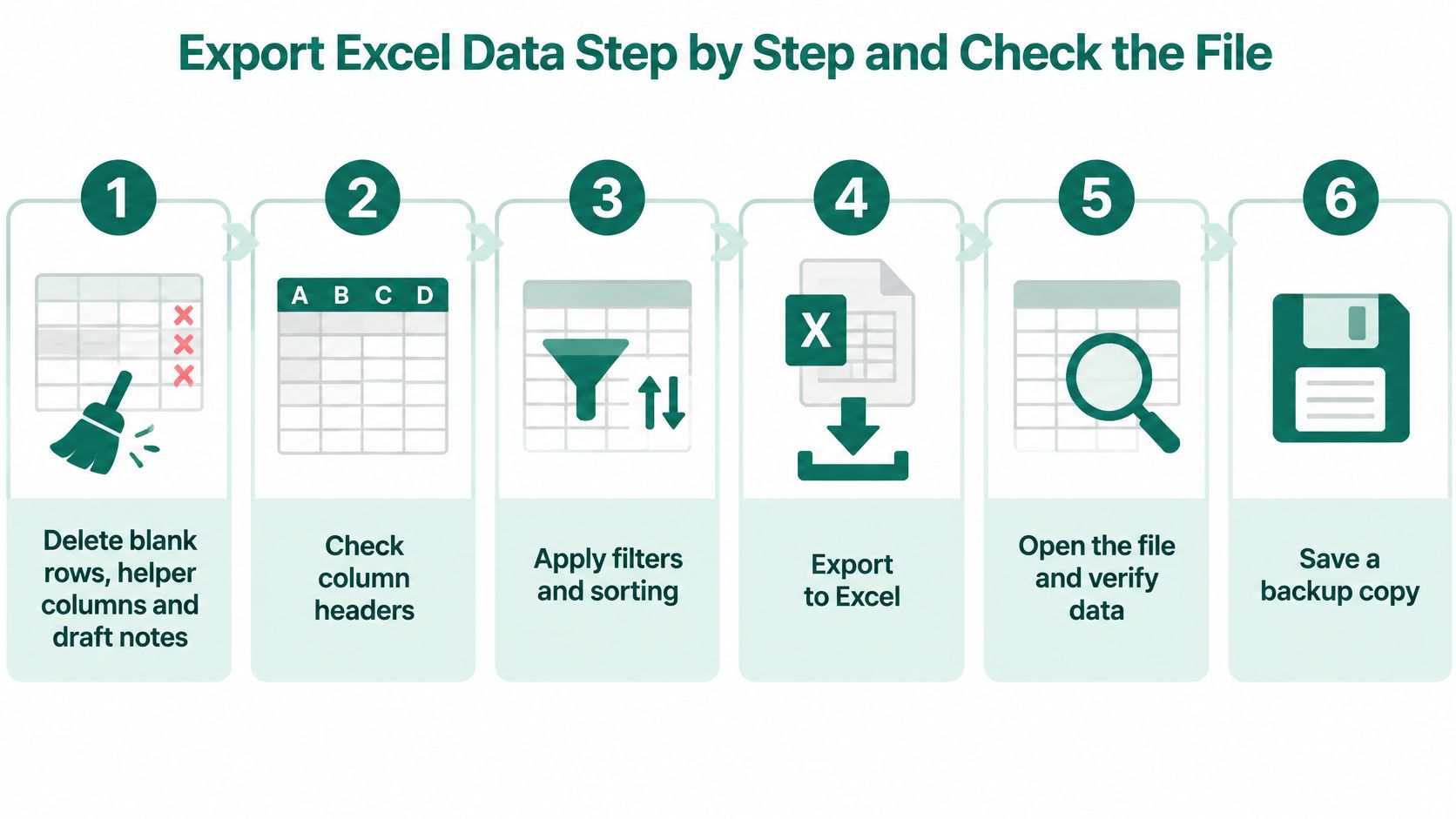
Remove material that shouldn't leave the workbook. Delete unnecessary blank rows, helper columns and draft notes from the delivery copy. Inspect hidden columns and sheets too. Hiding information isn't the same as excluding it from an export.
Put a unique field name in the header row. Each column should describe a single field, with no title banner above the headers. Use a structured Excel table for the review workbook and freeze its header row. Keep presentation notes outside the machine-readable data area.
Choose the required format. In desktop Excel, use File, Save As, Browse, then select the destination and file type. Menu wording can differ between versions. Check the actual extension before saving rather than relying on the filename shown in a recent-files list.
Select CSV UTF-8 for a text hand-off. Choose CSV UTF-8 (Comma delimited) where available. Check the receiving tool's delimiter requirements as well as its encoding settings. CSV retains the active sheet only, so other required tabs need separate exports.
Use a traceable filename. Include the list name, export date and a meaningful version label. Record the export timestamp and schema version in a control sheet or accompanying manifest. Avoid names such as
final_latest, which say nothing about the contents.Use Power Query for recurring preparation. Start from Data, Get Data, select the source and apply reusable transformations. Filter unwanted records early, assign types explicitly, then use Close & Load To for the destination. Keep rejected records available for review rather than removing them.
Microsoft's Power Query guidance describes importing and transforming external data, including automatic detection of CSV headers, delimiters and types. That convenience needs supervision: identifiers that resemble numbers or dates should receive explicit types instead of relying on inference.
Filters deserve particular attention. Applying a worksheet filter doesn't establish which records a save operation will include. If only selected records belong in the delivery, create a dedicated output table or query containing exactly those records before exporting.
For folder-based workflows, keep unrelated files outside the input folder. Use consistent headers and types across deliveries, and reject incompatible files rather than forcing them into the combined result.
Run the release checks
Reconcile the record count. Compare exported data rows with the defined source selection, excluding the header. Record any deliberate exclusions and explain the difference. A count that happens to match isn't sufficient if the wrong records were selected.
Validate the schema. Confirm that every required column exists exactly once. Compare header spelling, expected types and null conventions with the agreed schema. A renamed email field can prevent an import even when the addresses themselves remain correct.
Measure duplicate keys. Check email, normalised phone and company identifiers separately. Use COUNTIF, a PivotTable or Power Query grouping to identify repeated values, then calculate the duplicate share against the relevant populated records. Don't automatically delete repeated companies, since separate decision-makers may be legitimate.
Measure missing and uncertain values. Count blanks and Unknown statuses by field, not just across the workbook. Separate unavailable contact details from missing company identity or evidence. These require different decisions, so a single completeness score can conceal useful distinctions.
Reopen the actual saved file. Close the delivery copy and open it in a separate Excel process where practical. Check the final populated row, sheet names, headers and representative values. For CSV, use the import dialogue rather than double-clicking and accepting automatic conversions.
Test the destination. Import a small sample into the target CRM or sales tool, then compare the imported records with the source. Include awkward cases such as accented names, comma-containing company names, blank optional fields, leading-zero identifiers and uncertain contact statuses. Test edits and re-import too if that is part of the intended workflow.
A matching row count proves the quantity matches. It doesn't prove the identities, dates or contact statuses survived.
Release only after reconciliation
Require no missing required columns, no unhandled type-conversion errors and a source-to-export count that reconciles before release. Spot-check stored values against their source evidence, including records near the end of the file. Where the workflow supports it, compare stable identifiers or canonicalised record checksums as well.
Inspect untrusted text for formula injection. Values beginning with formula-like characters must be written using a safe text-handling method appropriate to the exporter and destination. Test that method against legitimate values such as international phone numbers so the protection doesn't introduce new damage.
If a check fails, repair the source mapping or transformation, regenerate the file and rerun the checks. Hand-editing the delivery alone creates a repair that disappears at the next export. Keep the validation result alongside the released version so another operator can identify what passed.
Fix Formatting and Compatibility Problems After Export
Start with identifiers and postcodes that have lost leading zeros. The visible symptom often looks like a formatting issue, but Excel may have changed the stored value. Display damage and value damage need different repairs.
Export symptoms, causes and fixes
| Symptom | Likely cause | Fix |
|---|---|---|
| Leading zeros gone from IDs or postcodes | Excel stored the value as a number | Import as Text through Data, then Get Data, or set Text and re-enter from the source |
| Long IDs show as scientific notation | Numeric storage may have lost precision | Import as Text; recover original digits from the source, not the displayed number |
| Day and month swapped | Locale date parsing | Import with the source locale and date format specified; compare sample dates |
| Accents or symbols garbled | Wrong encoding | Regenerate as CSV UTF-8, or import with UTF-8 selected |
| Columns shift after a blank cell | Inconsistent null handling or malformed delimiters | Preserve empty fields consistently and validate row structure; remove genuinely blank rows |
| Formulas appear as results | Calculated fields exported as values | Preserve required formula logic separately |
| Multivalued field shows semicolons | Multivalued fields exported as semicolon-separated text | Split with Text to Columns or Power Query before analysis |
| Attachments or embedded objects missing | The exporter omitted them | Export separately from the source record |
| Historical dates come out blank | The source export doesn't support the date range | Preserve the original date as ISO text |
Check the exporter, not just Excel
The Microsoft Access export documentation explains that calculated fields export as results, multivalued fields become semicolon-separated text, and attachments and objects are omitted; dates before 1 January 1900 become null. These are Access export behaviours, not a promise that every exporter makes identical changes. Null handling can also cause misalignment, so inspect the surrounding fields rather than filling blanks indiscriminately.
A scientific-notation display doesn't by itself prove corruption. Inspect the underlying value first. If the original identifier has changed, widening the column or applying Text formatting won't reconstruct it.
Repair decision: Reformat when only the display changed. Re-export from the source when the stored value changed.
A workbook that opens successfully isn't automatically safe to edit and import back. Preserve application identifiers, lookup keys and expected column mappings, then test the round trip before distributing an editable template. Keep the original file untouched for comparison with any repaired version.
Set Export Rules Before You Share the File
An export becomes a separate copy when it's saved. Set ownership, access and deletion rules before sharing, rather than assuming the source system's controls still apply.
The Accessible Data Interfaces export guidance recommends honouring column permissions and stating when restricted columns were omitted. Its discussion of Microsoft Dynamics also notes that static exports lack a continuing source connection, export permissions use security roles, and memory-intensive Excel exports should avoid limits above 100,000 records; that feature isn't intended for auditing.
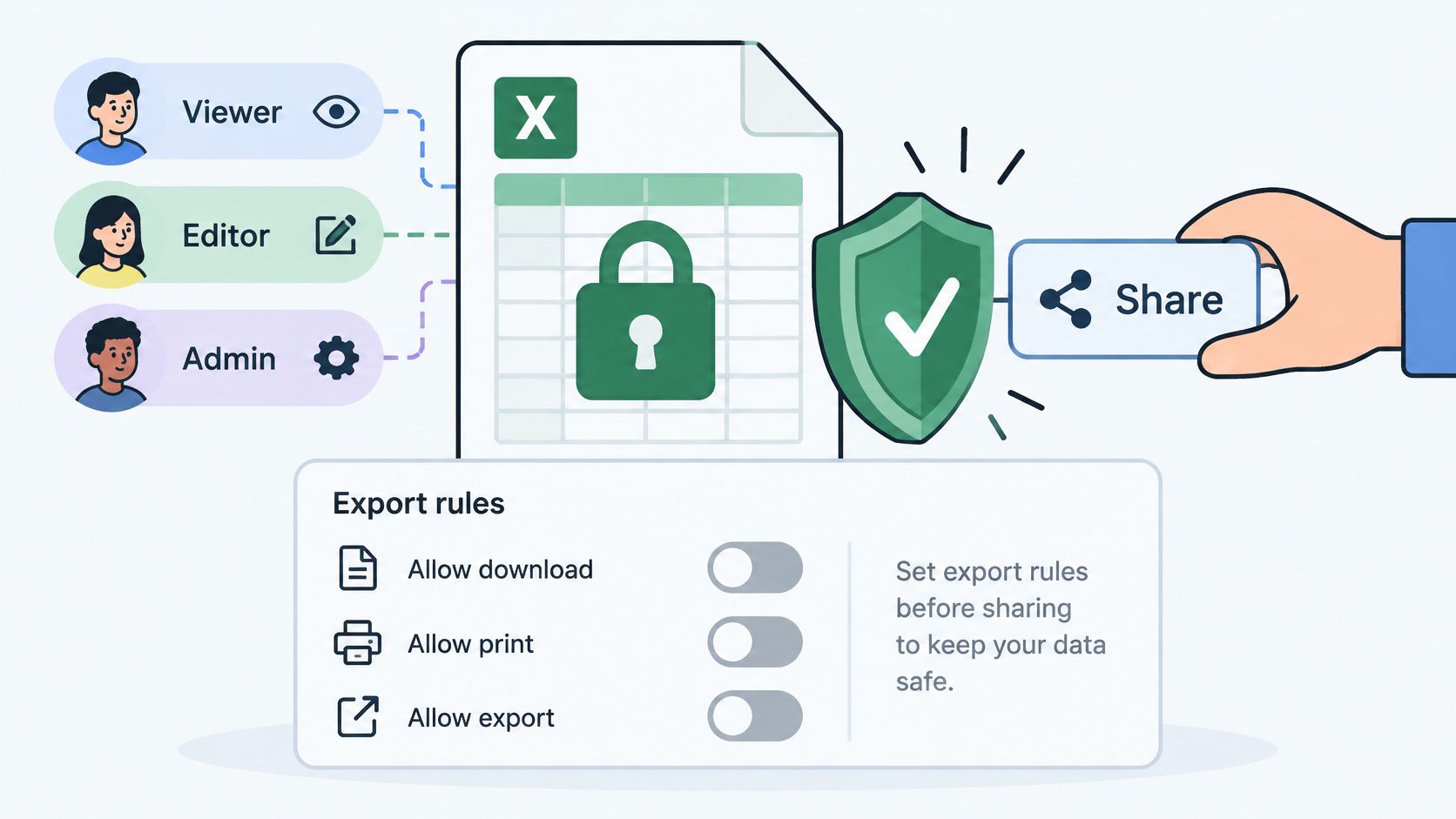
- Restrict export access: Assign named roles and remove restricted fields before serialisation.
- Document the hand-off: State omitted columns, the file owner and the deletion date for local copies.
- Preserve review context: Keep contact status and source visible. Understanding email verification helps reviewers distinguish contact quality from outreach approval.
- Choose governed delivery: Use an API or controlled data export for large recurring transfers, and retain a separate audit trail.
Every SignalVan lead list can be exported to Excel. SignalVan encrypts keys and files, but downloaded copies still need appropriate local controls. Outreach goes only through the customer's own Smartlead account, after separate approvals to build the campaign and start sending.
SignalVan uses signal-first prospecting to find companies showing hiring, funding, new-in-role, LinkedIn help requests, news and open-tender activity, verify decision-makers' emails and mobiles, and draft opening messages for approval. Keep that evidence intact in an Excel export, then approve and send through the connected Smartlead account. Paste your website at signalvan.com to see who's ready to buy this week.
Keep reading

Marketing Software for Agencies: Top Picks for 2026
Marketing Software for Agencies: Top Picks for 2026

Lead Generation Software: 10 Tools That Find Real Buyers
Lead Generation Software: 10 Tools That Find Real Buyers
10 Databases for Sales Compared: Coverage and Data Quality
10 Databases for Sales Compared: Coverage and Data Quality
Start with your website.
See your first leads, with the reason each one is there.